Introduction
Gmail mail forwarding is a powerful feature that allows users to automatically redirect incoming emails to another email address. Whether for backup, organization, or business efficiency, to set up mail forwarding in your Gmail account can be a game-changer.
Why Use Mail Forwarding in Gmail?
Mail forwarding can be highly beneficial in many scenarios, including:
- Convenience: Access all your emails in a single inbox.
- Backup: Keep a copy of important emails in another account.
- Business Efficiency: Forward work emails to personal or team inboxes.
- Filtering and Organization: Set up specific rules to forward only essential emails.
Prerequisites for Setting Up Mail Forwarding
Before you begin, ensure you have:
- A Gmail account (both sender and recipient accounts should be active).
- Access to the recipient email inbox for verification.
- Proper permissions if using a corporate email account.
How to Enable Mail Forwarding in Gmail
Follow these simple steps:
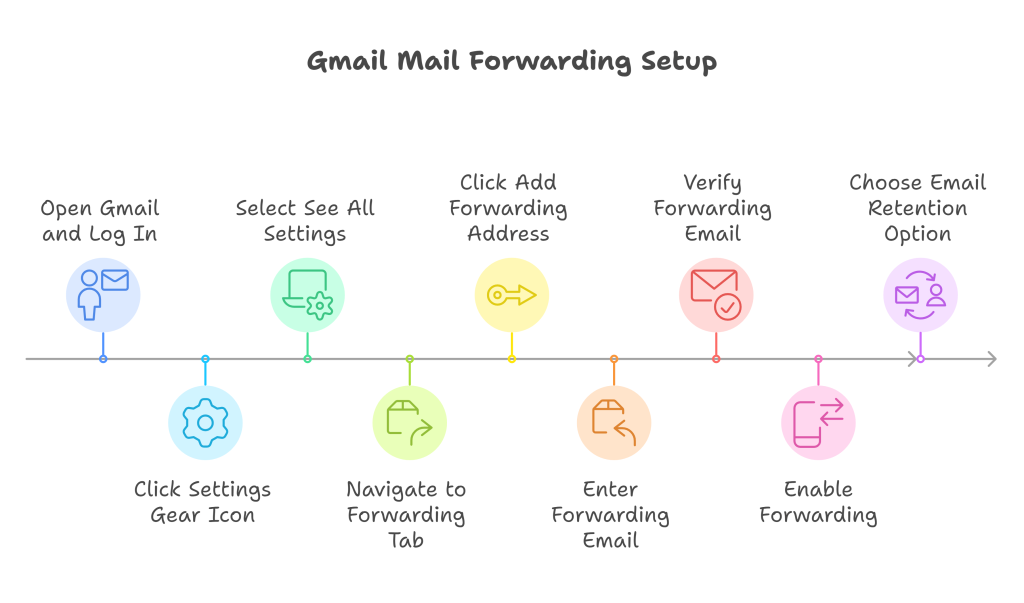
- Open Gmail and log in to your account.
- Click on the Settings gear icon in the top-right corner.
- Select See all settings.
- Navigate to the Forwarding and POP/IMAP tab.
- Under Forwarding, click Add a forwarding address.
- Enter the email address where you want to forward emails and click Next.
- A verification email will be sent to the recipient email. Click on the verification link inside the email.
- Return to Gmail settings and select Enable Forwarding.
- Choose whether to keep a copy in your Gmail inbox or delete it after forwarding.
- Click Save Changes.
Configuring Filters for Selective Forwarding
If you don’t want to forward all emails, you can set up filters:
- Go to Settings → Filters and Blocked Addresses.
- Click Create a new filter.
- Enter criteria (e.g., specific sender, keywords).
- Click Create filter and select Forward it to.
- Choose the forwarding address and save the filter.
Disabling Mail Forwarding in Gmail
To stop forwarding emails:
- Go to Settings → Forwarding and POP/IMAP.
- Under Forwarding, select Disable Forwarding.
- Click Save Changes.
Using Gmail Forwarding for Business Emails
Businesses can utilize mail forwarding for:
- Team collaboration.
- Monitoring multiple inboxes from one account.
- Automating email workflows.
Third-Party Tools for Advanced Forwarding
Several tools enhance Gmail’s forwarding capabilities:
- Mailgun – Automated email forwarding.
- Zapier – Custom workflow automation.
- Microsoft Outlook Rules – Advanced email filtering.
Security Considerations for Mail Forwarding
- Avoid forwarding sensitive data unless necessary.
- Enable two-factor authentication (2FA) for added security.
- Regularly review forwarding rules to prevent unauthorized access.
1- Can I forward emails to multiple addresses?
No, Gmail natively allows forwarding to only one email. However, you can use filters or third-party tools for multiple forwarding.
2- How do I check if my email is being forwarded?
Go to Settings → Forwarding and POP/IMAP to see if forwarding is enabled.
3- Will forwarded emails stay in my inbox?
You can choose to keep a copy, delete, or archive forwarded emails in settings.
4- Can I forward only certain emails?
Yes, use Gmail filters to forward emails based on specific criteria.
5- Is mail forwarding instant?
Yes, but sometimes there might be slight delays due to Gmail’s processing time.
6- What happens if I delete the forwarding address?
Email forwarding stops immediately, and emails will no longer be redirected.
In this article we gone through how to set up mail forwarding in Gmail is a straightforward process that can greatly improve your email management. Whether for work, organization, or backup, this feature helps streamline your communication.

![How to Set Up Mail Forwarding in Procmail on Ubuntu? [Step-by-Step Guide]](https://a2zeducate.com/wp-content/uploads/2025/03/Procmail-on-Ubuntu-1-150x150.png)