Microsoft’s Team Foundation Server (TFS) is a powerful source control system that enables teams to collaborate effectively. However, a common issue arises when a user locks files and then leaves the organization or forgets to check in their changes. These locked files prevent other team members from making modifications, which can hinder development progress. In this article, we will outline several methods to Unlock files in TFS source controller and regain control over your TFS repository.
Understanding Locked Files in TFS
In TFS source control, files can be locked in two main ways:
- Check-out locks: When a user checks out a file with an exclusive lock, they prevent other users from editing or checking in changes until they unlock the file.
- Pending changes locks: If a user has pending changes that they have not checked in, they keep the file locked and inaccessible.
If the user who locked the file has left the company or is unavailable, administrators must take action to unlock the file.
A few times ago, one developers among the developer team has check-out the code files and forget to check in the source files.
1: Using the TFS Command-Line Tool (TF.EXE)
Following are the steps To Unlock files in TFS source controller or Remove workspace:
1- Open a developer command prompt:
- Go to Start->All Programs-> Visual Studio 2017(or depending on your version of Visual Studio)->Developer Command Prompt for Visual Studio
- Open Developer Command Prompt for Visual Studio
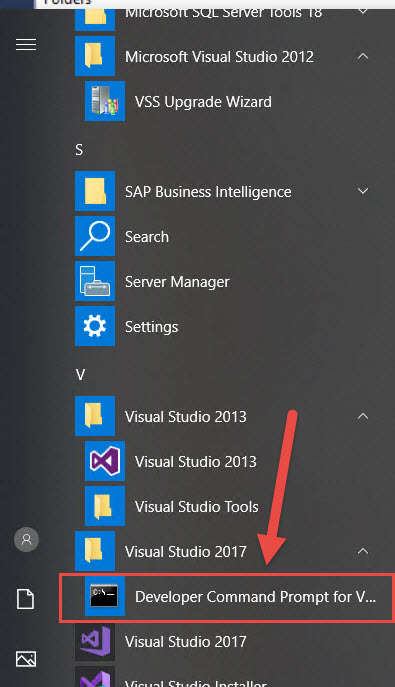
2- How to find workspaces available on Source controller (TFS)
tf workspaces /server:http://applikazo:8080/tfs/Collection_Name /owner:*

3- How to find workspace of the user/employee who left company or forgot?
tf workspaces /server:http://applikazo:8080/tfs/Collection_Name /owner:asad4- How to Undo the changes made by user over TFS file?
tf undo $/Cosmos2008/Cosmos/OctopusWeb/Test/Eralper/EY.aspx /workspace:DESKTOP-k8hv7h7; asad /collection: http://applikazo:8080/tfs/Collection_Name 5- How to unlock a TFS file that a user locked and then either forgot or changed their computer.
tf lock /lock:none /workspace:DESKTOP-k8hv7h7;asad $/Cosmos2008/Cosmos/OctopusWeb/Test/Eralper/EY.aspx/collection: http://applikazo:8080/tfs/Collection_Name 6- How to remove workspace in TFS with below command, locked by employee/user?
tf workspace /server:http://applikazo:8080/tfs/asad /delete DESKTOP-k8hv7h7;asad 
2: Using Team Foundation Server Administration Console
Administrators with access to the TFS Administration Console can unlock files without using command-line commands.
- Launch the TFS Administration Console on the TFS server.
- Navigate to Team Project Collection > Version Control.
- Locate the locked file and right-click it.
- Select Unlock or Undo Pending Changes.
- Confirm the action to remove the lock.
This method is useful when you have GUI access and prefer a visual approach over command-line operations.
Method 3: Using Visual Studio Source Control Explorer
If you have admin privileges, you can unlock files directly through Visual Studio:
- Open Visual Studio and connect to the TFS server.
- Go to Source Control Explorer.
- Locate the locked file.
- Right-click on the file and select Unlock.
- If the option is unavailable, ensure you have the necessary administrative rights.
This method is best suited for administrators who have permissions within Visual Studio.
Best Method 5: Reassigning or Deleting the User’s Workspace
If the locked files belong to a user who has left the organization, administrators can either delete or reassign their workspace.
- Open the TFS Administration Console.
- Navigate to Workspaces.
- Locate the workspace associated with the user.
- Choose Delete to remove the workspace, unlocking all associated files.
- Alternatively, reassign the workspace to an active user, allowing them to check in or undo changes.
Best Practices to Prevent Future Lock Issues
To avoid recurring file lock problems in TFS, consider implementing these best practices:
- Use Shared Checkouts: Allow multiple users to check out the same file when possible.
- Regularly Audit Workspaces: Periodically review and remove inactive workspaces.
- Set Auto-Unlock Policies: Configure policies that unlock files automatically after a set period of inactivity.
- Educate Developers: Train team members on proper check-in/check-out procedures.
- Assign Backup Administrators: Ensure there is always an admin with permission to unlock files.
You can unlock files in TFS Source Control using several methods, including command-line tools (TF.EXE), Visual Studio, the TFS Administration Console, database queries, and workspace management. Administrators should choose the most suitable approach based on their access levels and the urgency of the issue.
You can either unlock the files if you know which ones are locked, or better yet, you can remove the workspace of the developer who has left the team. When you remove the workspace, the source control will check in all the files and folders that the developer had checked out.



![How to Set Up Mail Forwarding in Procmail on Ubuntu? [Step-by-Step Guide]](https://a2zeducate.com/wp-content/uploads/2025/03/Procmail-on-Ubuntu-1-150x150.png)